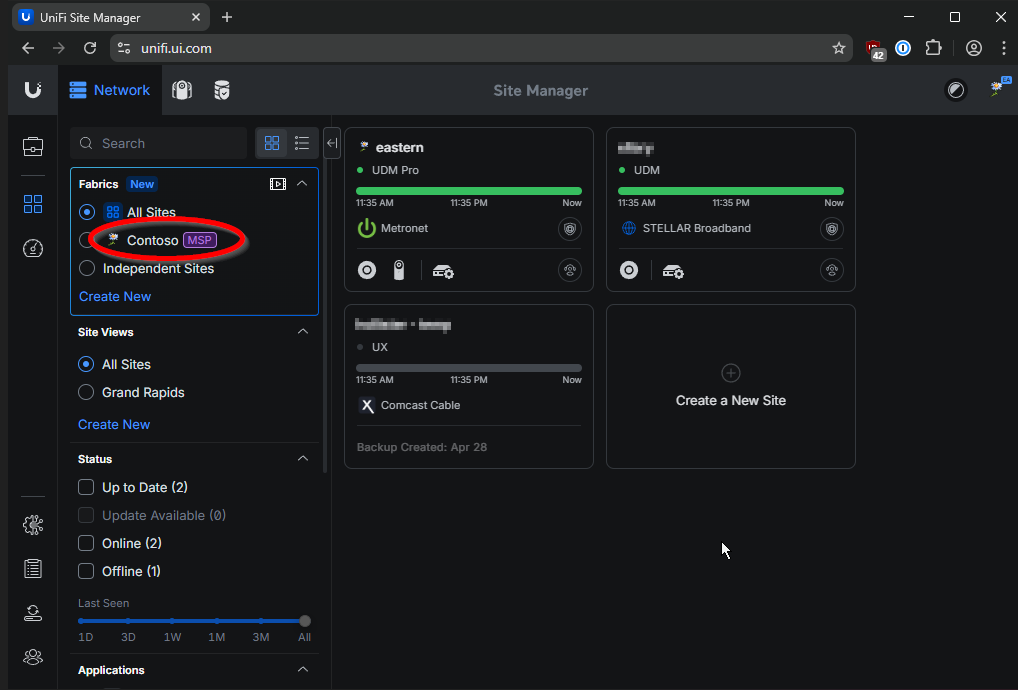
In version 5.8.0 of Site Manager UniFi added multiple features to finally allow true SSO into client environments for MSPs. This also uses the new MSP relationship they added into Fabrics.
Added MSP Groups to create MSP teams, import employees from an IdP, and centrally manage access across customer Fabrics.
Fabrics Overview
- Each organization/client should have their own Fabric.
Create MSP Account
I would recommend creating a new UniFi account for your organization (ex: unifi@contoso.com).
- Open the UniFi Site Manager with the account you would like to be the MSP owner. Note that clients will have to share access with this email, so you likely don't want it named.
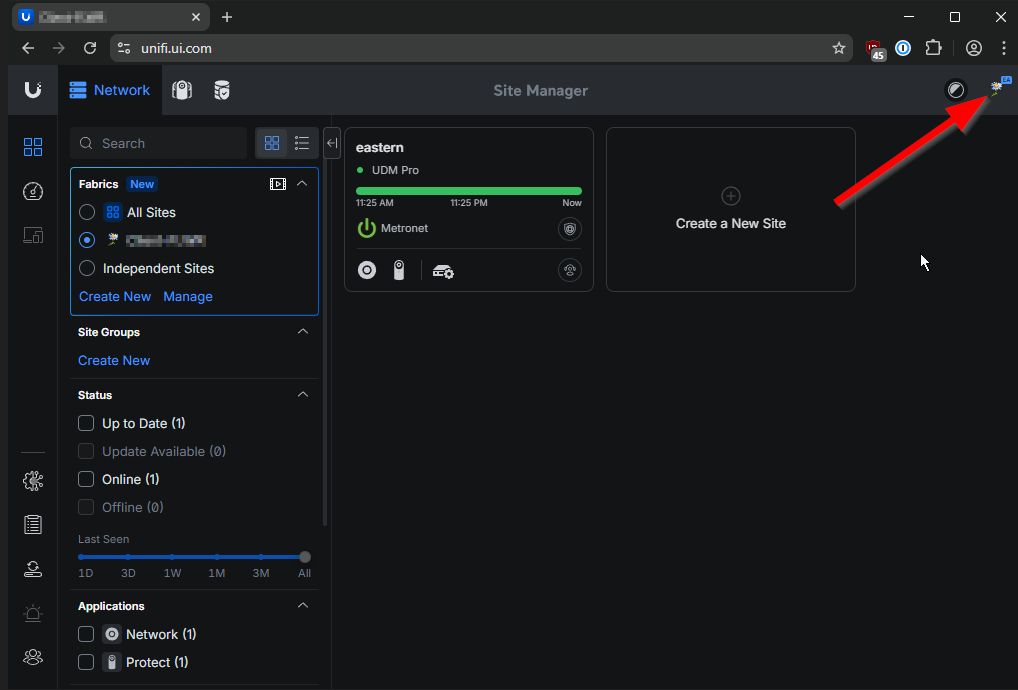
- Open your profile (top right), then account settings.
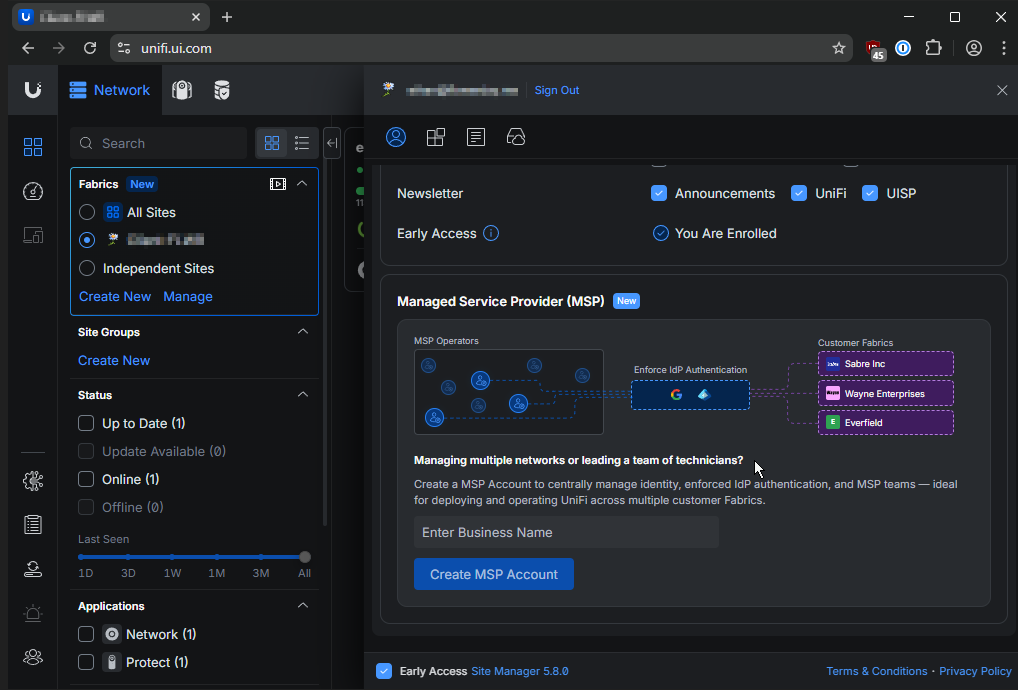
- Enter your MSP name and "Create MSP Account".
 4. Enable Bind Identity Provider. Follow this document from UniFi if you have issues connecting your IdP.
Enable SSO
This guide is for Microsoft 365 / Entra ID SSO.
- Create a security group in your Microsoft 365 tenant.
- Add the users you would like to provision inside of UniFi to the new group.
- Select the group under the MSP settings which are located in the account settings of the MSP owner.
- SSO is enabled. Users are automatically imported as users with access to no sites. I have not found a way to set default permissions yet.
Signing in with SSO
Users will go to the UniFi Site Manager (https://unifi.ui.com/) and enter their username. They will then be directed to their identity provider.
Add Fabrics to your MSP
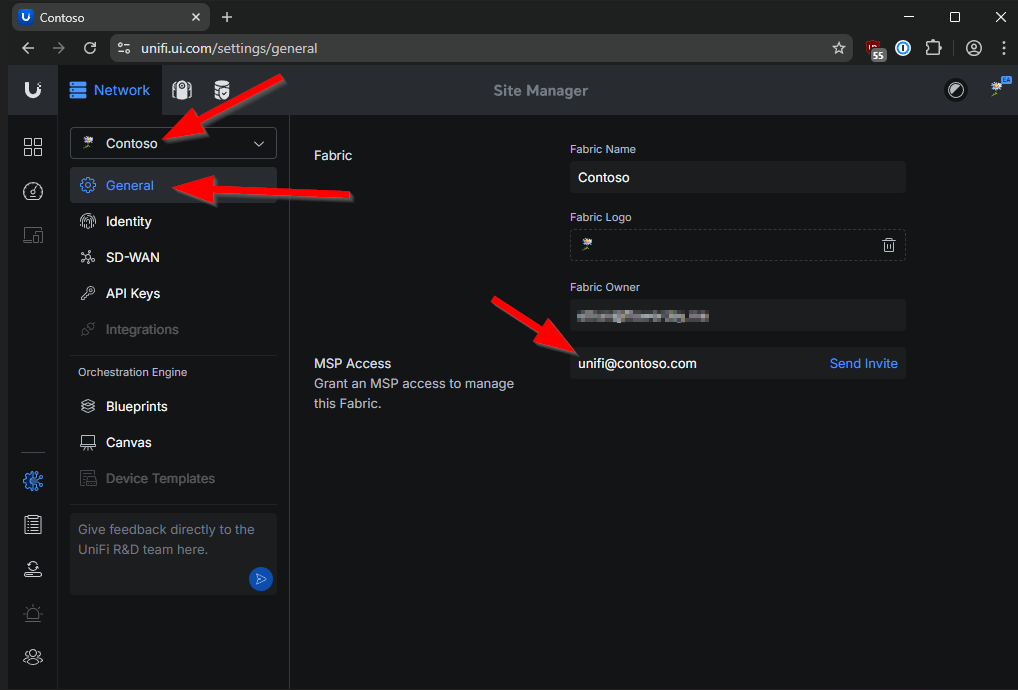
- Sign into UniFi Site Manager as the OWNER of the UniFi Fabric you are adding to your MSP.
- Open Settings and select your Fabric.
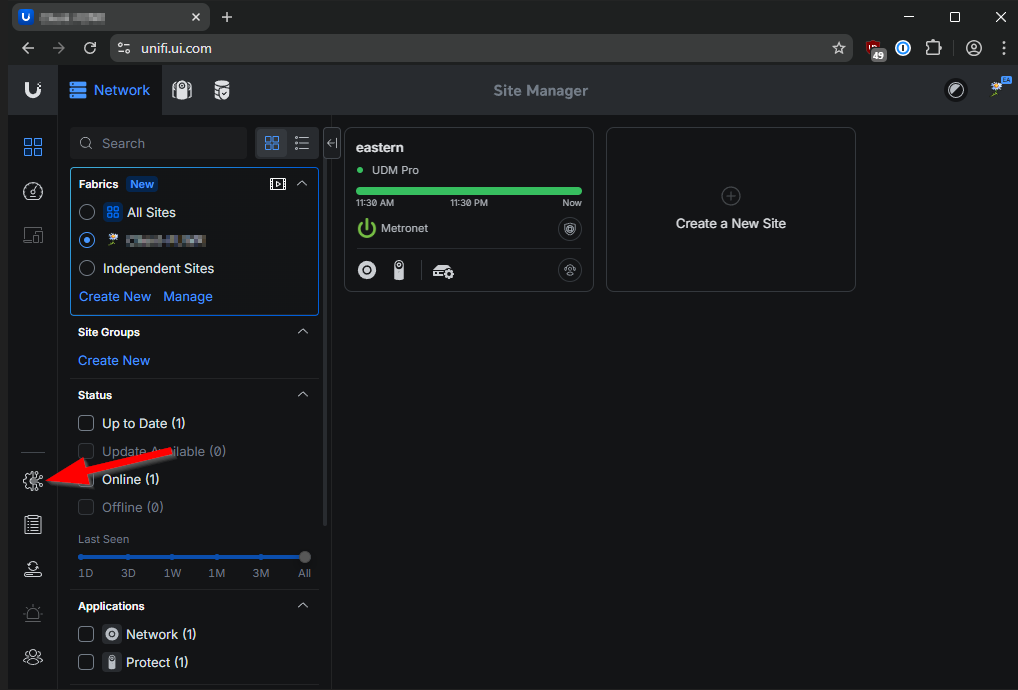
- Select General, enter the email address of the MSP owner, and send invite.
- Return to your MSP Dashboard (https://unifi.ui.com/msp/customers) and accept the invitation.
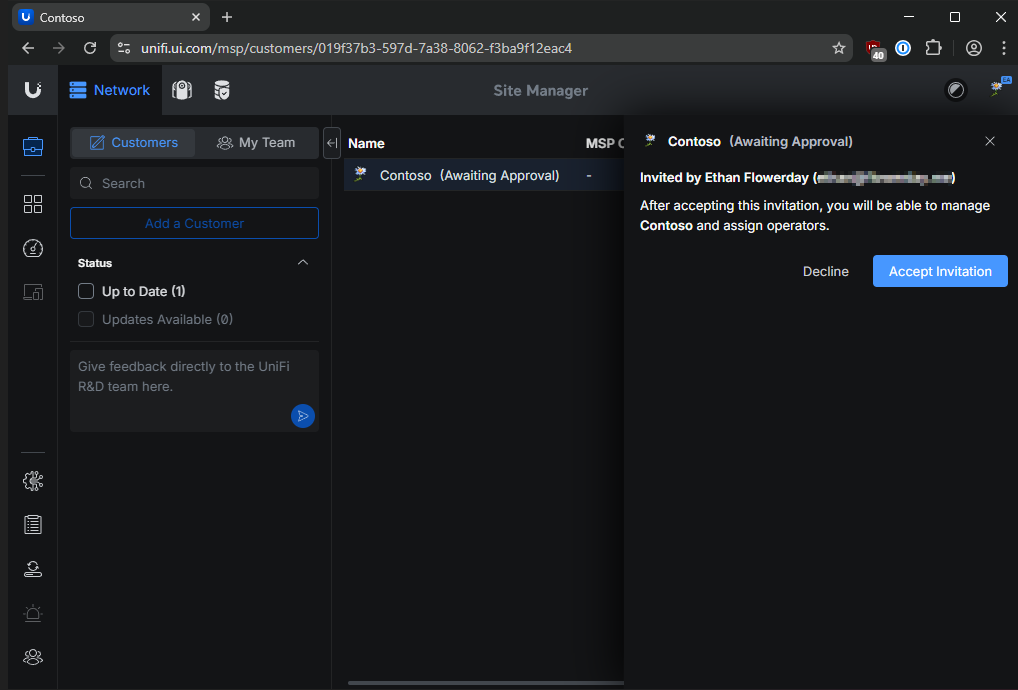
- Your client fabric should now appear in site manager.